Why Emails Go to Spam (& How to Fix It) 2026
Emails land in spam due to a mix of factors — broken SPF/DKIM/DMARC records, poor sender reputation, low engagement, and spammy content. This guide breaks down every cause and gives you a step-by-step checklist to get back in the inbox.
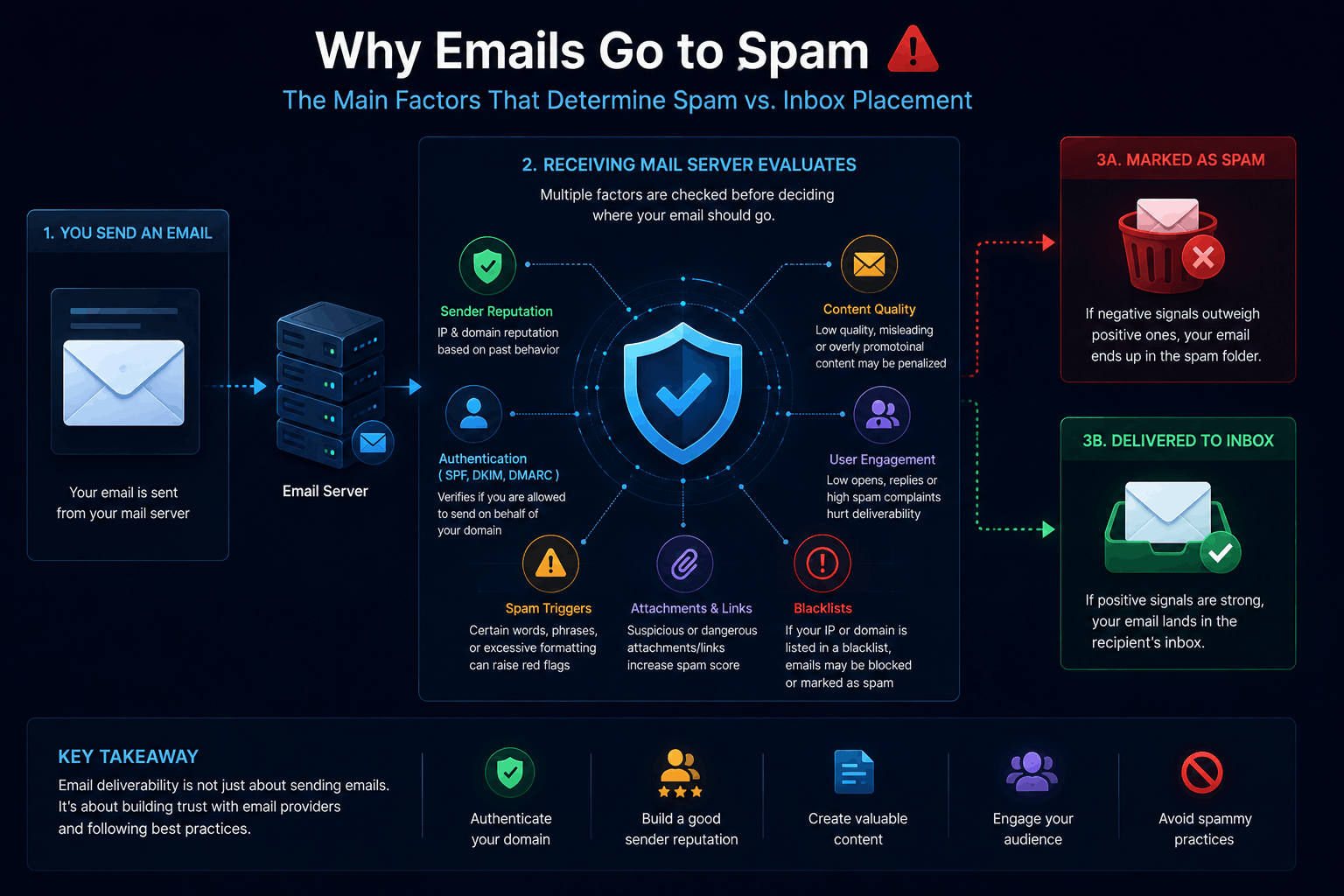
Why Emails Go to Spam: The Complete 2026 Guide
Featured Snippet Answer: Emails go to spam mainly because of poor sender reputation, missing or misconfigured authentication records (SPF, DKIM, DMARC), spammy content or formatting, low recipient engagement, and sending patterns that mimic spammers — such as sudden volume spikes from an unwarmed domain or IP.
If you've ever hit send on a perfectly reasonable email and later discovered it quietly rotting in someone's spam folder, you're not alone. Deliverability problems are one of the most common — and most misunderstood — issues in email marketing, sales outreach, and transactional messaging. The frustrating part is that spam filtering isn't governed by a single rule. It's the sum of dozens of signals evaluated in milliseconds by systems like Gmail's spam filter, Microsoft Defender for Office 365, and enterprise-grade filters like Proofpoint or Mimecast.
This guide breaks down exactly why emails go to spam, using the same signals mailbox providers actually evaluate — authentication, reputation, content, engagement, and infrastructure — and gives you a practical, checklist-driven path to fixing each one. Whether you're a solo founder sending cold outreach or a marketing team troubleshooting a sudden deliverability drop, this article is built to be the last resource you need to open on the topic.
You can check your own setup as you read using our free DNS Records Checker and Email Security Checker — keep them open in a second tab.
Table of Contents
- How Spam Filters Actually Work
- Reason 1: Missing or Broken Email Authentication
- Reason 2: Poor Sender Reputation
- Reason 3: IP Reputation Problems
- Reason 4: Low Engagement Signals
- Reason 5: Spammy Content and Formatting
- Reason 6: Bad List Hygiene
- Reason 7: Sending Behavior That Looks Like Spam
- Reason 8: Blocklists (DNSBLs)
- Reason 9: Technical DNS Misconfigurations
- Gmail vs Outlook: Different Filters, Different Rules
- Step-by-Step: How to Diagnose Why Your Email Went to Spam
- The Complete Fix Checklist
- How to Warm Up a Domain the Right Way
- Common Mistakes That Keep Emails in Spam
- Key Takeaways
- FAQs
- Summary
How Spam Filters Actually Work
Before diagnosing why your emails go to spam, it helps to understand what a spam filter is actually doing. Modern spam filters — including Gmail's, Microsoft's, and Yahoo's — are machine learning systems that score every incoming message across several categories, then decide in real time whether to deliver it to the inbox, the spam folder, the promotions tab, or reject it outright.
Broadly, these systems evaluate:
| Signal Category | What It Measures |
|---|---|
| Authentication | Does the message pass SPF, DKIM, and DMARC checks? |
| Sender Reputation | Historical sending behavior of the domain and IP |
| Content Analysis | Wording, links, HTML structure, attachments |
| Engagement | Opens, replies, deletes-without-reading, spam reports |
| Infrastructure | Reverse DNS, hosting provider, TLS configuration |
| List Quality | Bounce rate, spam trap hits, unknown-user rate |
No single factor determines placement — it's a weighted combination. That's why two nearly identical emails, sent from two different domains, can land in completely different places. This is also why "why did my email go to spam" rarely has a one-line answer — it's almost always a combination of two or three issues compounding each other.
With that framework in mind, let's go through each major cause in detail.
Reason 1: Missing or Broken Email Authentication
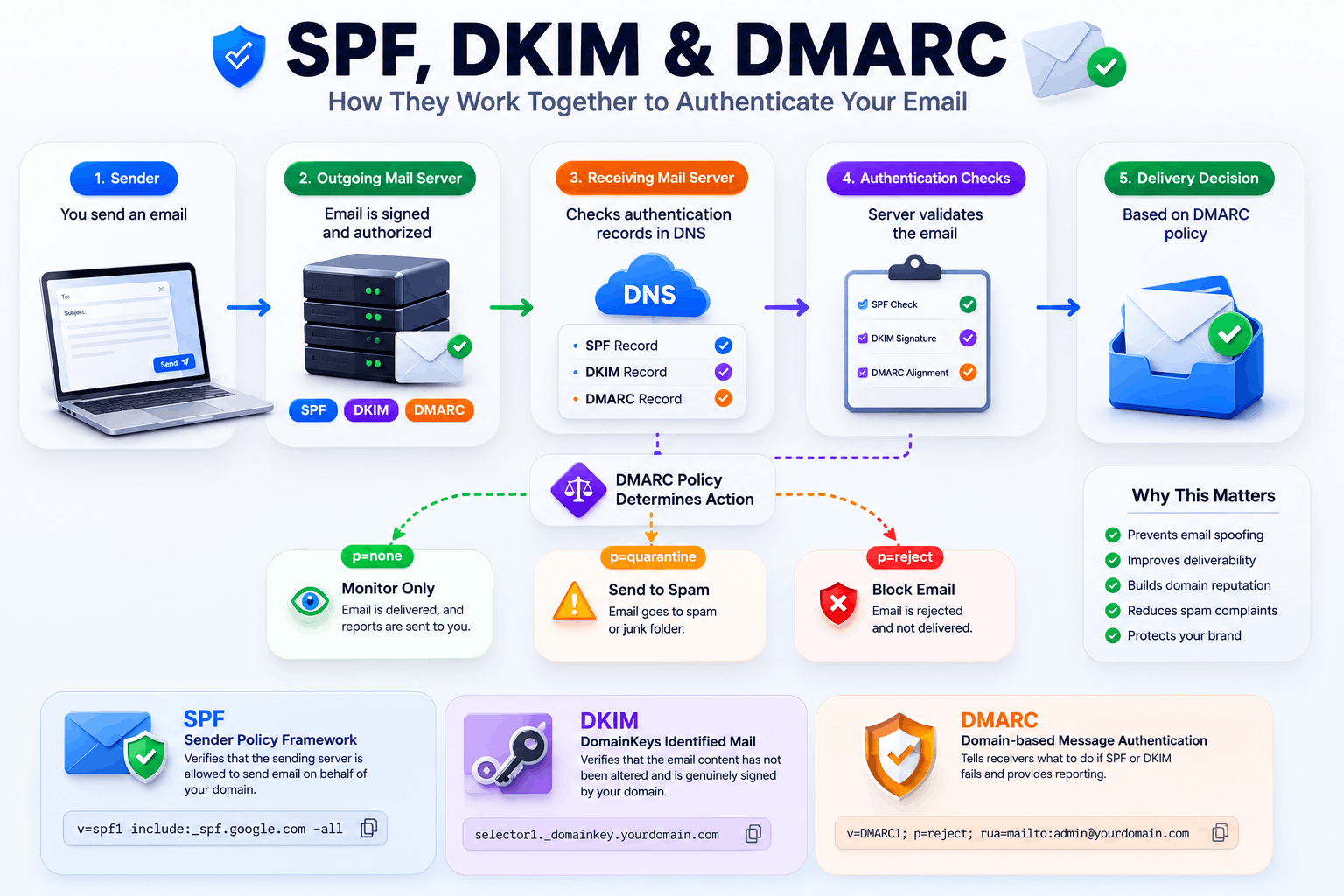
Email authentication is the single most foundational deliverability factor. It proves to receiving servers that a message actually came from who it claims to be from — which is exactly what protocols like SPF, DKIM, and DMARC were built to solve, as outlined in our guide on how SPF records stop email fraud.
SPF (Sender Policy Framework)
SPF is a DNS TXT record that lists which mail servers are authorized to send email on behalf of your domain. If a receiving server sees mail from a server not listed in your SPF record, that's a red flag. For a deeper technical breakdown, see what is an SPF record and SPF record syntax explained.
A common and damaging issue is SPF PermError, which happens when you exceed the 10 DNS lookup limit defined in RFC 7208. We cover this in detail in our SPF PermError guide — but the short version is: too many include: statements silently break your entire SPF record, and receiving servers may treat that as a failure.
You can verify your current SPF setup instantly with our free SPF Lookup tool.
DKIM (DomainKeys Identified Mail)
DKIM adds a cryptographic signature to your outgoing emails using a private key, which receiving servers verify against a public key published in your DNS. If the signature doesn't match — because content was altered in transit, or the key is misconfigured — the message fails DKIM. Our DKIM signature explained article and what is DKIM guide walk through setup in detail. Check your current DKIM record with our DKIM Lookup tool.
DMARC (Domain-based Message Authentication, Reporting & Conformance)
DMARC ties SPF and DKIM together and tells receiving servers what to do when a message fails both — reject it, quarantine it (usually the spam folder), or do nothing. Without a DMARC record, you have no policy in place, and inconsistent SPF/DKIM alignment can quietly push mail to spam. Learn more in what is DMARC, how DMARC protects your domain, DMARC record syntax, and DMARC fail explained. You can check your live record using our DMARC Lookup tool.
Pro Tip: Start DMARC with
p=noneto monitor without affecting delivery, then move top=quarantineand eventuallyp=rejectonce you've confirmed all legitimate senders pass authentication.
Quick Authentication Health Check
| Record | What to Check | Tool |
|---|---|---|
| SPF | Includes all sending sources, under 10 lookups | SPF Lookup |
| DKIM | Selector exists, public key matches private key | DKIM Lookup |
| DMARC | Record exists, alignment mode correct | DMARC Lookup |
| Overall | All records present and valid | DNS Records Checker |
Reason 2: Poor Sender Reputation
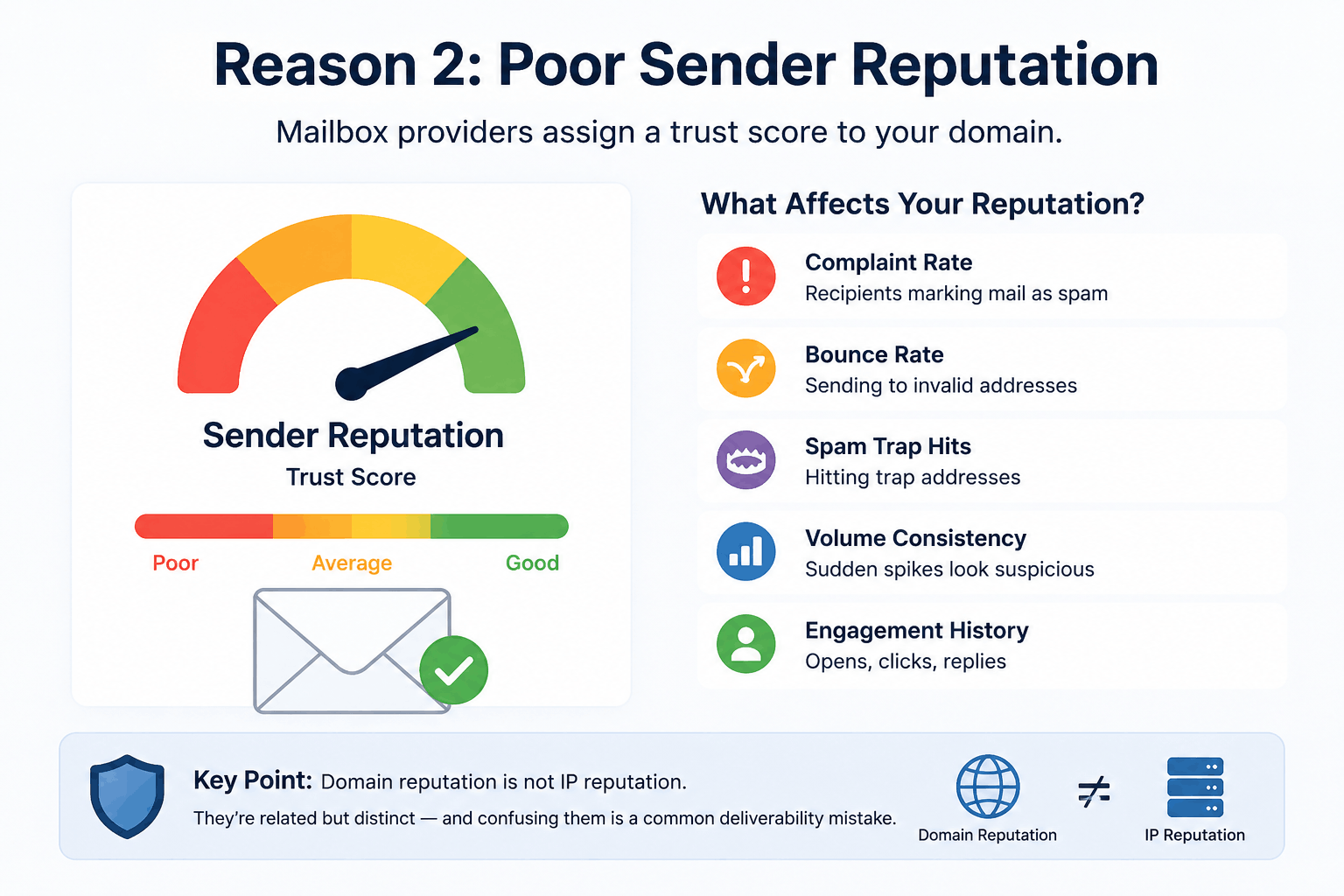
Sender reputation is essentially a trust score mailbox providers assign to your domain. It's built (or damaged) over time by:
- Complaint rate (recipients marking mail as spam)
- Bounce rate (sending to invalid addresses)
- Spam trap hits
- Volume consistency
- Engagement history
Google's own guidance for bulk senders states that a spam rate above roughly 0.3% tracked in Google Postmaster Tools puts your domain at meaningful risk, and anything approaching or exceeding 0.1% should already trigger investigation. Reputation is domain-specific but is also influenced by the reputation of the infrastructure (ESP or SMTP relay) you send through — a shared IP pool with bad neighbors can drag your deliverability down even if your own practices are clean.
Domain reputation is not IP reputation — they're related but distinct concepts, and confusing them is one of the most common deliverability mistakes.
Reason 3: IP Reputation Problems
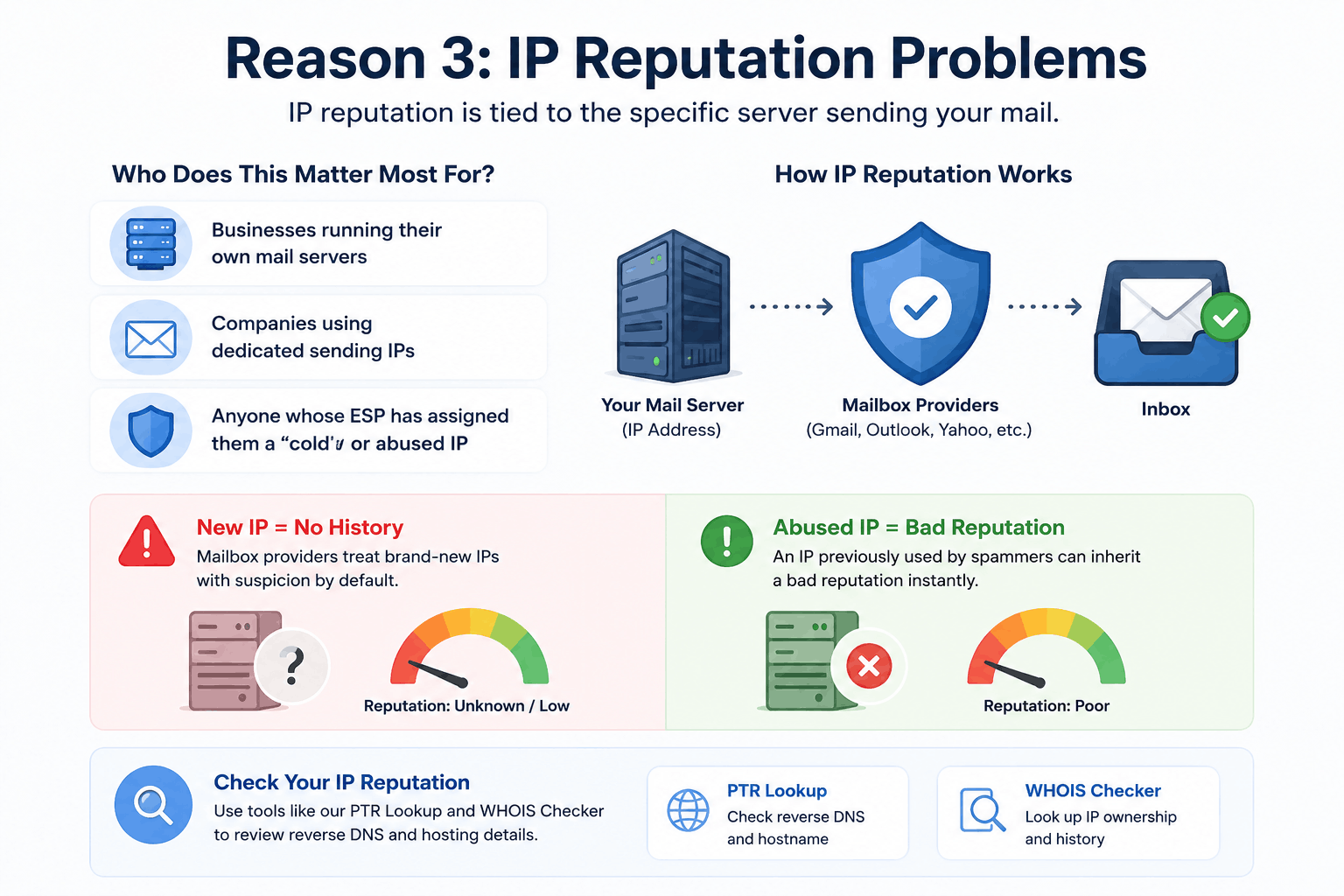
While domain reputation follows your sending domain wherever it goes, IP reputation is tied to the specific server sending the mail. This matters most for:
- Businesses running their own mail servers
- Companies using dedicated sending IPs
- Anyone whose ESP has assigned them a "cold" or previously-abused IP
A brand-new IP address has no sending history, which mailbox providers treat with suspicion by default. Similarly, a dedicated IP previously used by a spammer (if reassigned by a hosting provider) can inherit a bad reputation instantly. You can check reverse DNS and hosting details relevant to IP reputation using our PTR Lookup and WHOIS Checker.
Reason 4: Low Engagement Signals
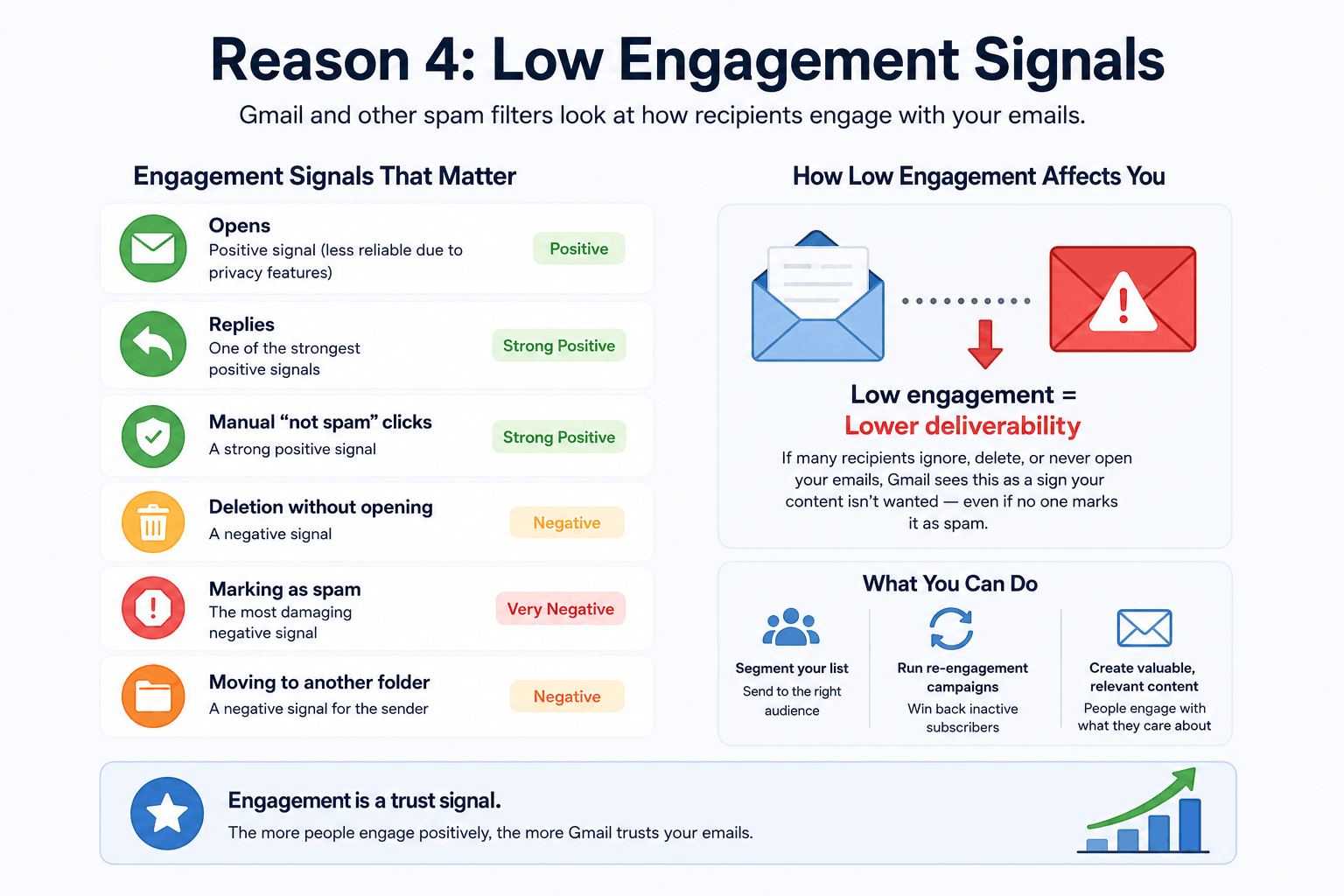
Modern spam filters — Gmail's in particular — weigh recipient engagement heavily. This includes:
- Opens (though privacy features like Apple's Mail Privacy Protection have made this less reliable)
- Replies — one of the strongest positive signals
- Manual "not spam" clicks — a strong positive signal
- Deletion without opening — a negative signal
- Marking as spam — the most damaging negative signal
- Moving to another folder — a negative signal for the sender
If a large share of recipients ignore, delete, or never open your emails, Gmail interprets that as a sign the content isn't wanted — even if nobody explicitly reports it as spam. This is why list segmentation and re-engagement campaigns matter more for deliverability than most senders realize.
Reason 5: Spammy Content and Formatting
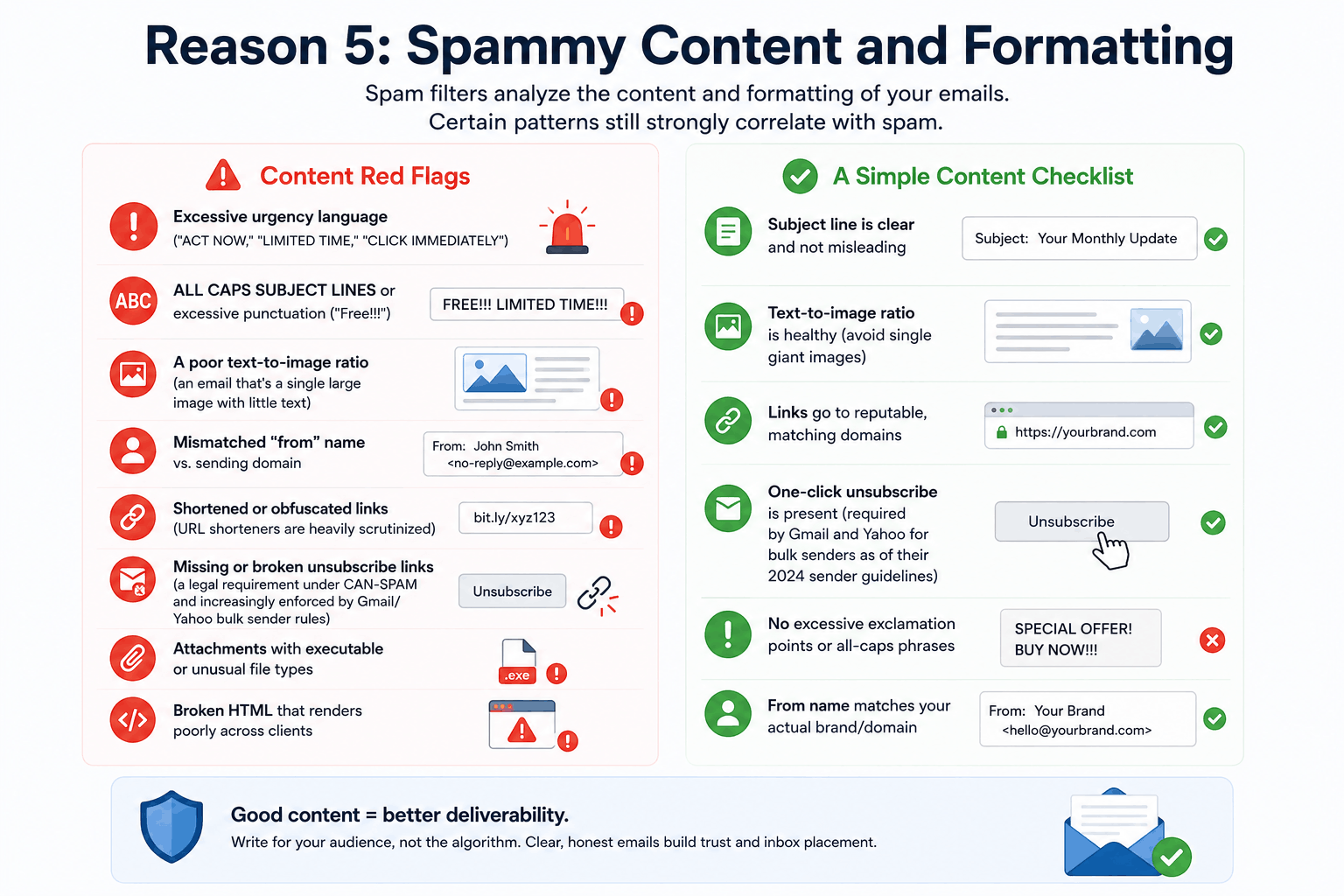
Content-based filtering has become far less about "banned words" and much more about holistic pattern recognition, but certain patterns still correlate strongly with spam:
Content Red Flags
- Excessive urgency language ("ACT NOW," "LIMITED TIME," "CLICK IMMEDIATELY")
- ALL CAPS SUBJECT LINES or excessive punctuation ("Free!!!")
- A poor text-to-image ratio (an email that's a single large image with little text)
- Mismatched "from" name vs. sending domain
- Shortened or obfuscated links (URL shorteners are heavily scrutinized)
- Missing or broken unsubscribe links (a legal requirement under CAN-SPAM and increasingly enforced by Gmail/Yahoo bulk sender rules)
- Attachments with executable or unusual file types
- Broken HTML that renders poorly across clients
A Simple Content Checklist
- Subject line is clear and not misleading
- Text-to-image ratio is healthy (avoid single giant images)
- Links go to reputable, matching domains
- One-click unsubscribe is present (required by Gmail and Yahoo for bulk senders as of their 2024 sender guidelines)
- No excessive exclamation points or all-caps phrases
- From name matches your actual brand/domain
Reason 6: Bad List Hygiene
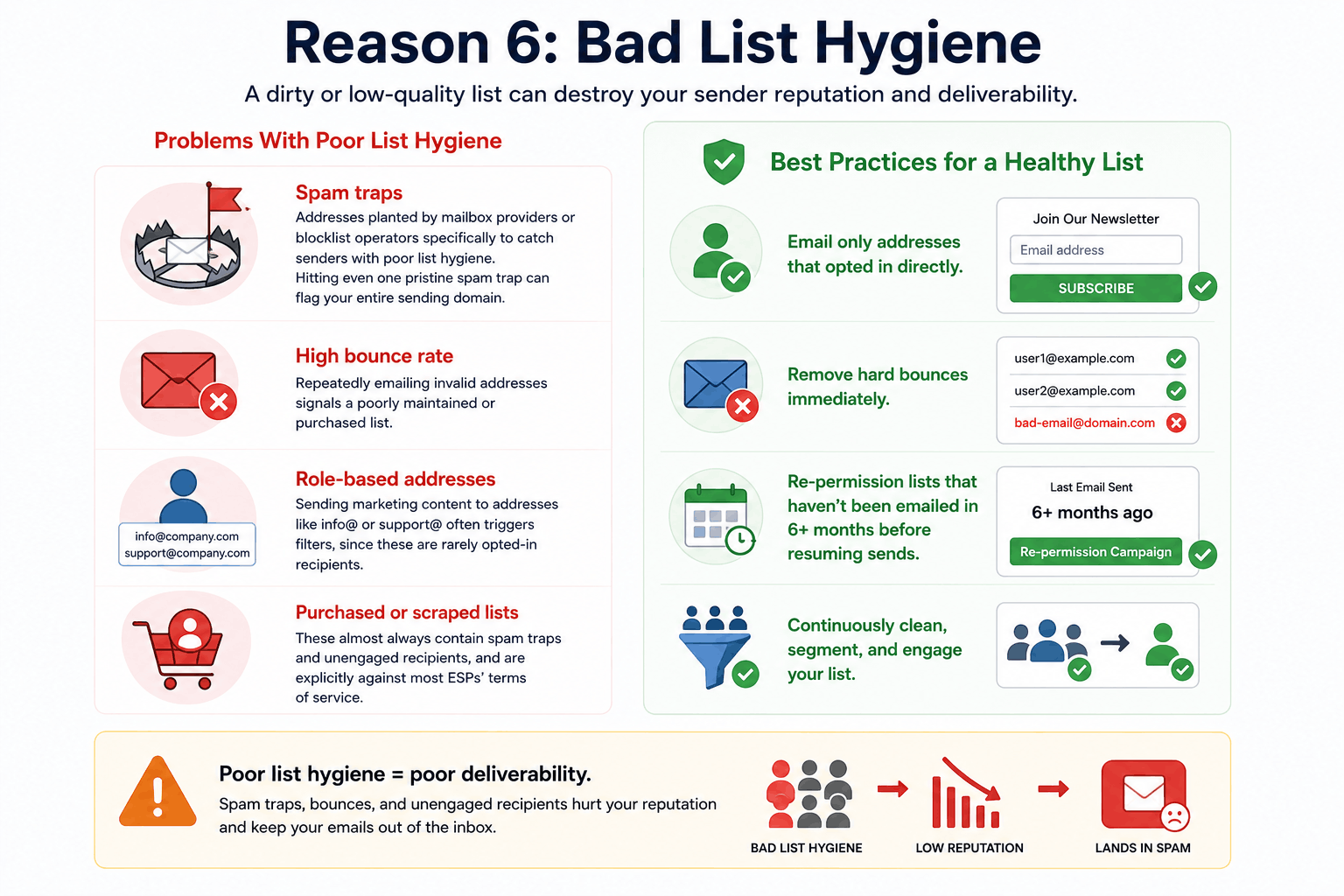
Sending to a stale or purchased list is one of the fastest ways to tank deliverability. Problems include:
- Spam traps — addresses planted by mailbox providers or blocklist operators specifically to catch senders with poor list hygiene. Hitting even one pristine spam trap can flag your entire sending domain.
- High bounce rate — repeatedly emailing invalid addresses signals a poorly maintained or purchased list.
- Role-based addresses — sending marketing content to addresses like
info@orsupport@often triggers filters, since these are rarely opted-in recipients. - Purchased or scraped lists — these almost always contain spam traps and unengaged recipients, and are explicitly against most ESPs' terms of service.
Best practice: only email addresses that opted in directly, remove hard bounces immediately, and re-permission lists that haven't been emailed in 6+ months before resuming sends.
Reason 7: Sending Behavior That Looks Like Spam
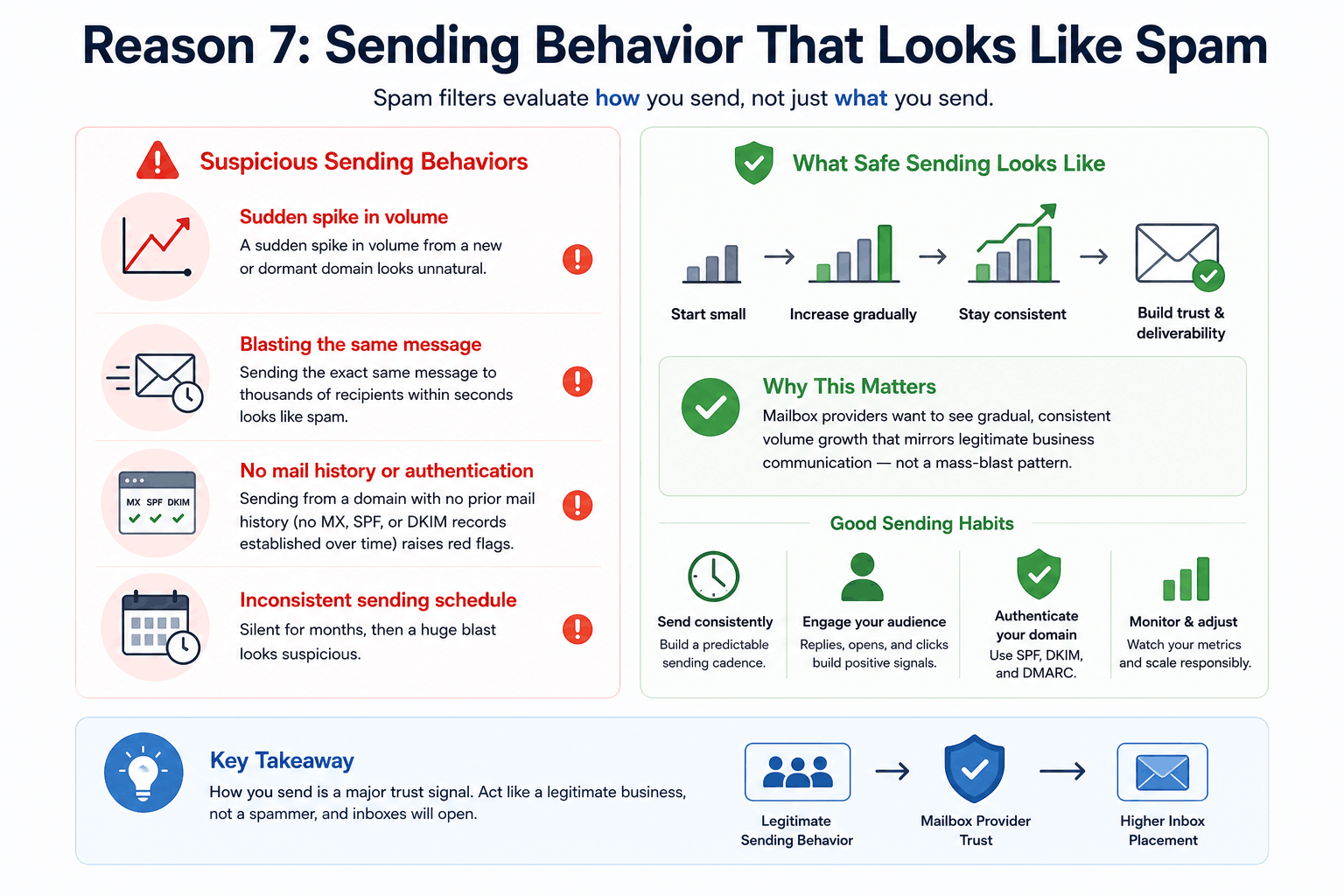
Spam filters also evaluate how you send, not just what you send. Suspicious patterns include:
- A sudden spike in volume from a new or dormant domain
- Sending the exact same message to thousands of recipients within seconds
- Sending from a domain with no prior mail history (no MX, SPF, or DKIM records established over time)
- Inconsistent sending schedule (silent for months, then a huge blast)
This is why domain warm-up (covered later in this guide) exists — mailbox providers want to see gradual, consistent volume growth that mirrors legitimate business communication rather than a mass-blast pattern.
Reason 8: Blocklists (DNSBLs)
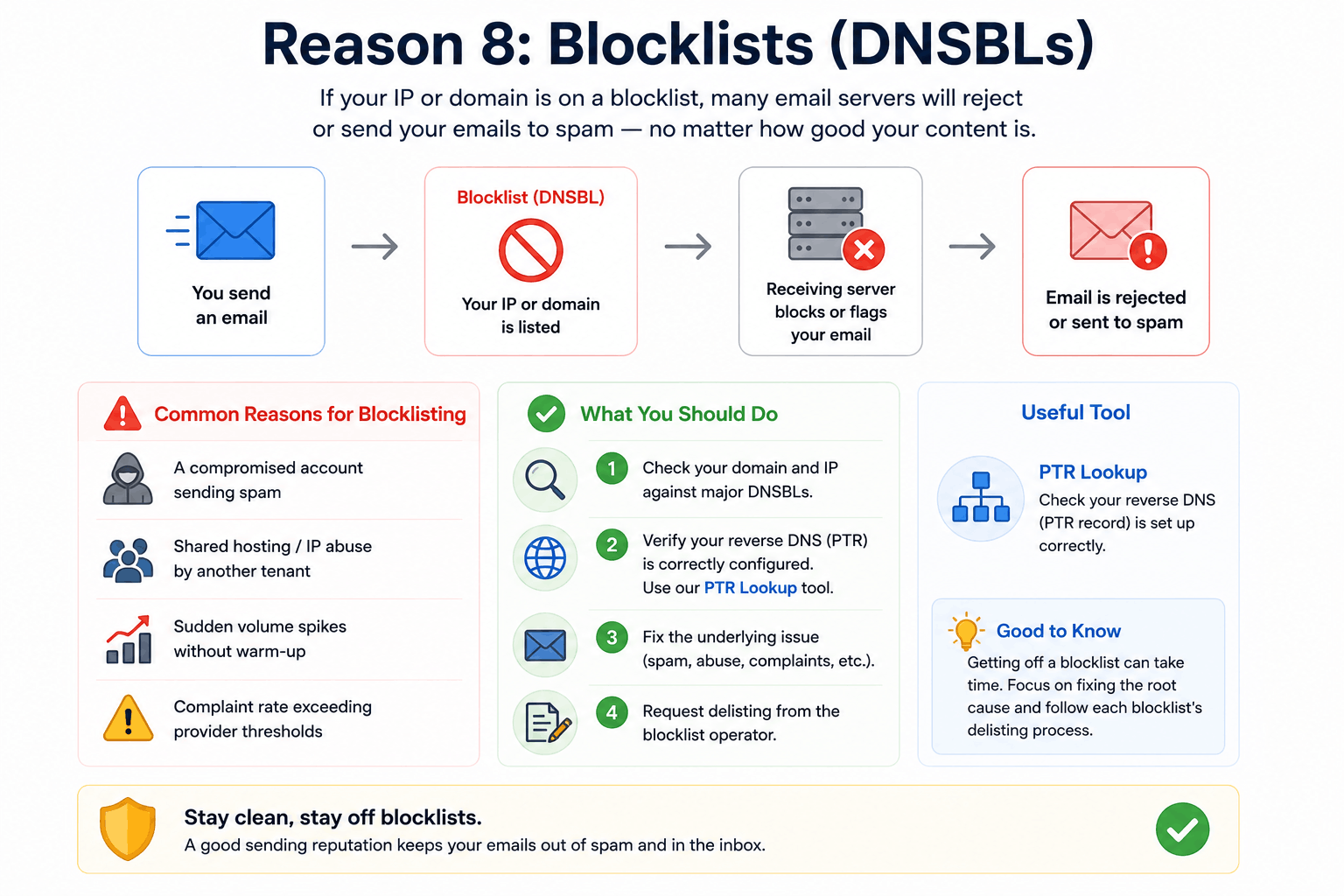
DNS-based Blocklists (DNSBLs) like Spamhaus, Barracuda, and SORBS maintain lists of IP addresses and domains associated with spam or abuse. If your sending IP or domain lands on one of these lists, many receiving servers will reject or spam-folder your mail automatically, regardless of how clean your content is.
Common reasons for blocklisting include:
- A compromised account sending spam through your infrastructure
- Shared hosting/IP abuse by another tenant
- Sudden volume spikes without warm-up
- Complaint rate exceeding provider thresholds
If you suspect blocklisting, check your domain and IP against major DNSBLs, verify your reverse DNS (PTR) is correctly configured using our PTR Lookup tool, and request delisting directly through each blocklist operator's process once the underlying issue is fixed.
Reason 9: Technical DNS Misconfigurations
Beyond SPF, DKIM, and DMARC, several other DNS records affect deliverability indirectly:
| Record | Role in Deliverability |
|---|---|
| MX | Defines where your domain's mail is received; misconfiguration can cause bounce-backs that hurt reputation |
| A / AAAA | Ensures your domain resolves correctly; broken resolution damages trust |
| CNAME | Used for ESP tracking domains and DKIM delegation |
| PTR (rDNS) | Reverse DNS mismatch is a major red flag for receiving servers |
| NS | Incorrect nameservers can cause DNS propagation failures affecting all the above |
You can audit all of these at once with our DNS Records Checker, or check individual record types with our MX Lookup, A Record Checker, AAAA Record Checker, CNAME Lookup, NS Lookup, and TXT Lookup tools. For background on how these records work together, see our guide to understanding DNS records.
Gmail vs Outlook: Different Filters, Different Rules
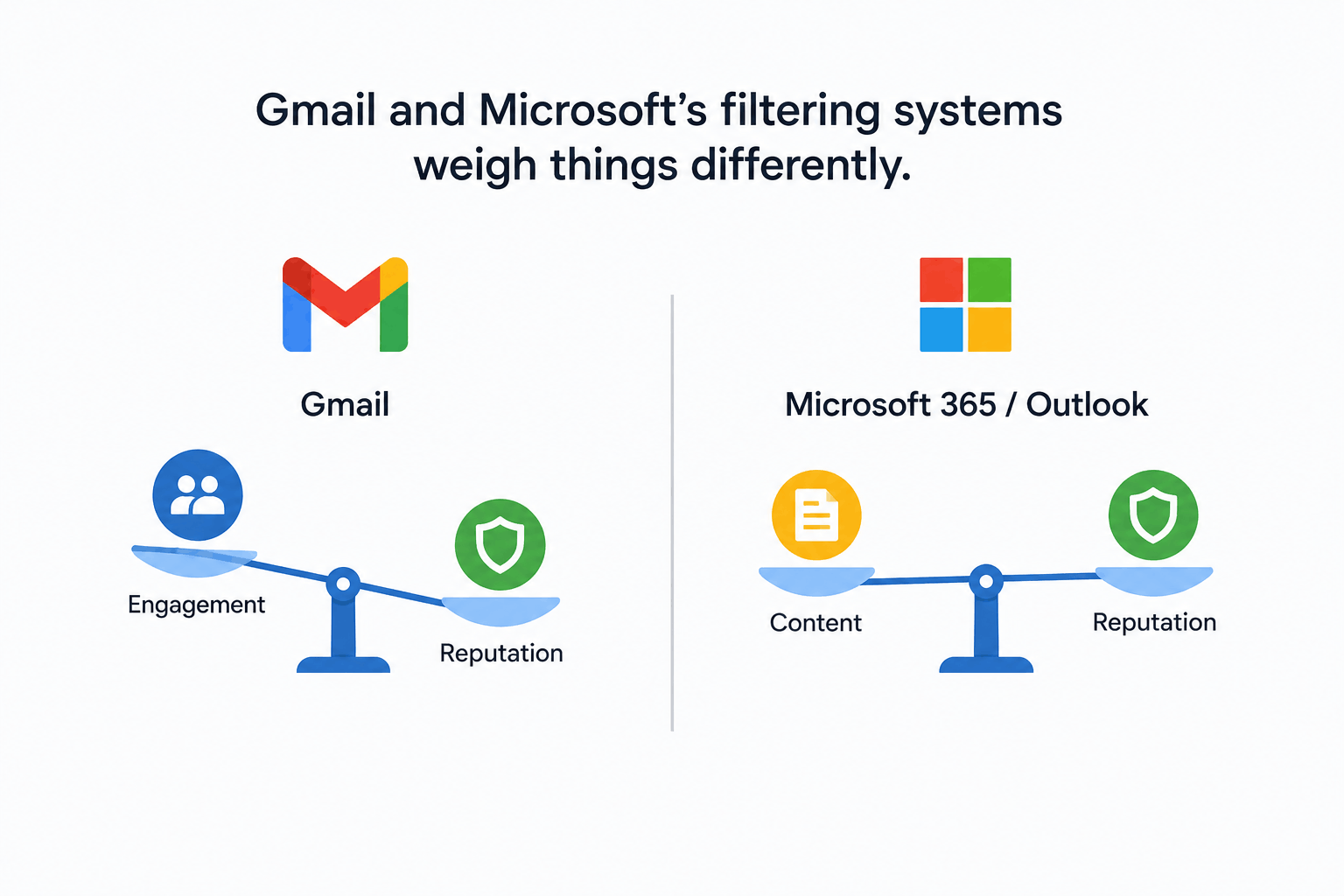
While the core signals overlap, Gmail and Microsoft's filtering systems weigh things differently.
| Factor | Gmail | Microsoft 365 / Outlook |
|---|---|---|
| Engagement weighting | Very heavy (opens, replies, deletes) | Moderate; relies more on content + reputation scoring |
| Bulk sender requirements | Strict as of 2024 guidelines (SPF+DKIM+DMARC required at 5,000+ msgs/day) | Similar requirements introduced for high-volume senders |
| Folder behavior | Primary / Promotions / Spam tabs | Focused / Other inbox split, plus Junk folder |
| Blocklist sensitivity | Uses proprietary reputation + some DNSBL data | Uses Microsoft SmartScreen + DNSBL data |
| Unsubscribe requirement | One-click unsubscribe required for bulk senders | Recommended, increasingly enforced |
Since 2024, both Google and Yahoo require bulk senders (5,000+ emails/day to their domains) to have valid SPF, DKIM, and DMARC, plus a one-click unsubscribe mechanism. Falling short of these isn't just risky — it can result in outright rejection rather than spam-foldering.
Step-by-Step: How to Diagnose Why Your Email Went to Spam

- Check authentication first. Run your domain through our Email Security Checker to confirm SPF, DKIM, and DMARC are all passing and aligned.
- Review Google Postmaster Tools / SNDS. These free tools from Google and Microsoft show your domain's spam rate, IP reputation, and delivery errors directly from the source.
- Check blocklist status. Search your sending IP and domain against major DNSBLs.
- Audit recent content. Did a recent campaign use urgent language, poor formatting, or shortened links?
- Check list hygiene. Review bounce rates and recent complaint rates in your ESP dashboard.
- Check sending volume trends. Did you send a sudden spike compared to your historical average?
- Send a seed test. Send a test email to accounts across Gmail, Outlook, and Yahoo to see where it lands.
The Complete Fix Checklist
- SPF record published and under 10 DNS lookups — verify with SPF Lookup
- DKIM configured and signing all outgoing mail — verify with DKIM Lookup
- DMARC record published with an appropriate policy — verify with DMARC Lookup
- MX, A/AAAA, and NS records correctly configured — verify with DNS Records Checker
- Reverse DNS (PTR) matches sending hostname — verify with PTR Lookup
- Domain and IP not on major blocklists
- List cleaned of hard bounces and unengaged contacts
- One-click unsubscribe present on all bulk mail
- Content free of excessive urgency language, ALL CAPS, and broken links
- Sending volume ramped gradually, not spiked
- Google Postmaster Tools and Microsoft SNDS monitored regularly
How to Warm Up a Domain the Right Way
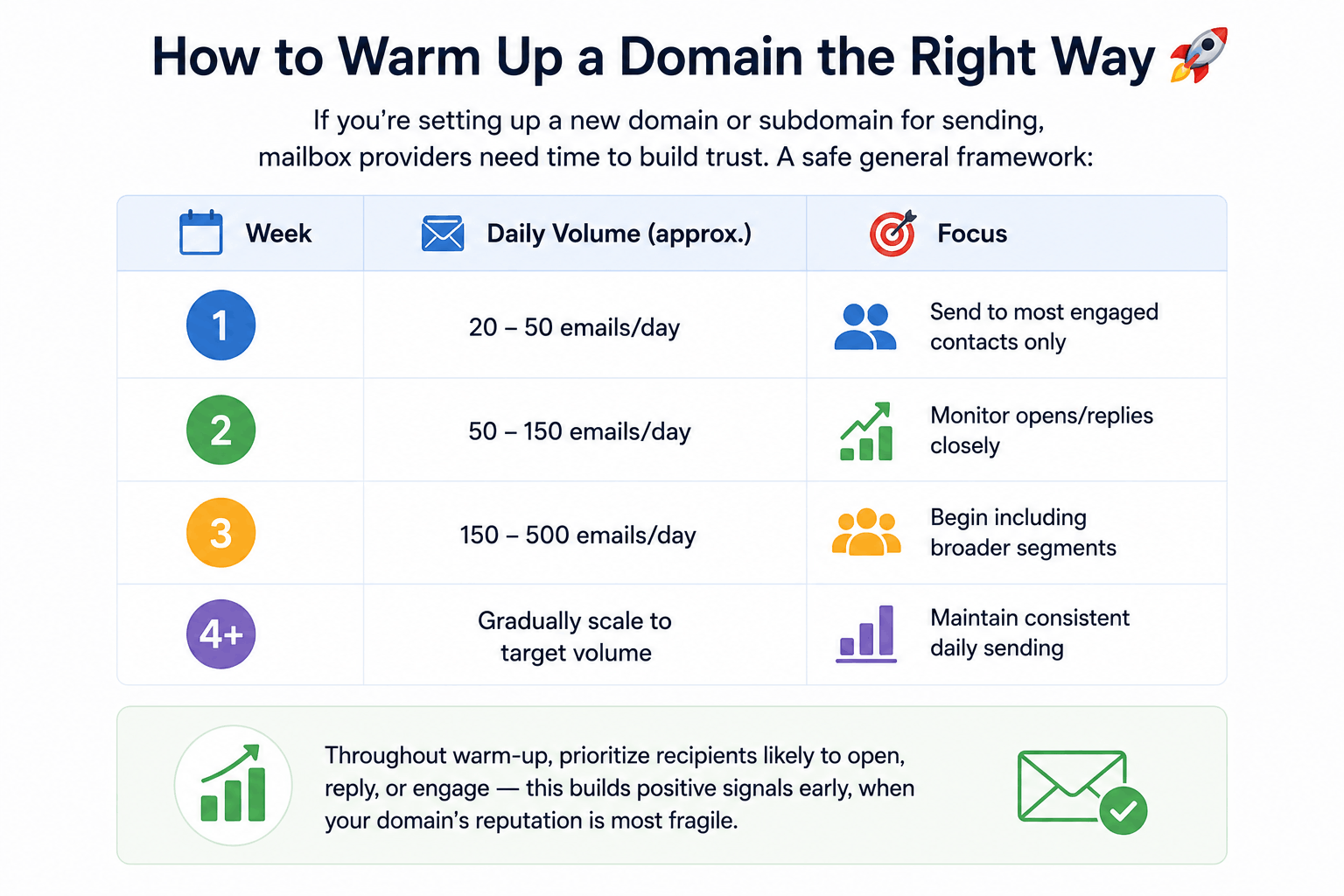
If you're setting up a new domain or subdomain for sending, mailbox providers need time to build trust. A safe general framework:
| Week | Daily Volume (approx.) | Focus |
|---|---|---|
| 1 | 20–50 emails/day | Send to most engaged contacts only |
| 2 | 50–150 emails/day | Monitor opens/replies closely |
| 3 | 150–500 emails/day | Begin including broader segments |
| 4+ | Gradually scale to target volume | Maintain consistent daily sending |
Throughout warm-up, prioritize recipients likely to open, reply, or engage — this builds positive signals early, when your domain's reputation is most fragile.
Common Mistakes That Keep Emails in Spam
- Assuming DKIM alone is "authentication." Without SPF and DMARC alignment, DKIM alone isn't enough.
- Ignoring Google Postmaster Tools. Most senders never check the one dashboard that shows exactly how Gmail sees them.
- Buying email lists. Almost guaranteed to include spam traps.
- Sending from a domain used for company email with no warm-up. Mixing high-volume marketing sends with your primary business domain risks your core email reputation too — many senders use a dedicated subdomain instead.
- Fixing content but ignoring authentication (or vice versa). Deliverability issues are rarely single-cause; both need attention.
- Not monitoring after fixing. Reputation recovery takes time — days to weeks, not hours.
Key Takeaways
- Spam placement is decided by a combination of authentication, reputation, content, and engagement signals — not one single factor.
- SPF, DKIM, and DMARC are the non-negotiable technical foundation; without them, nothing else matters as much.
- Engagement signals (replies, opens, spam reports) increasingly drive Gmail's filtering decisions.
- List hygiene prevents spam trap hits, which can silently damage reputation for months.
- Warm-up matters for any new domain, subdomain, or IP — sudden volume looks like spam even from legitimate senders.
- Use free tools like our DNS Records Checker and Email Security Checker to catch issues before they affect deliverability.
FAQs
1. Why does my email go to spam even with SPF and DKIM set up? SPF and DKIM passing individually isn't enough — they need to be aligned with your DMARC policy, and even with perfect authentication, poor content or low engagement can still trigger spam filtering.
2. How long does it take to fix a sender reputation problem? Typically 2–6 weeks of consistent, clean sending, though severe reputation damage (like a blocklist listing) can take longer to fully resolve.
3. Does sending from Gmail or Outlook affect deliverability differently than a custom domain? Yes — sending through consumer webmail platforms at scale often triggers stricter limits, while a properly authenticated custom domain gives you full control over reputation.
4. Can one spam complaint hurt my whole domain? A single complaint rarely causes lasting damage, but a complaint rate above roughly 0.1–0.3% of sent volume is a serious warning sign to mailbox providers.
5. What's the difference between the spam folder and an outright email rejection? Spam-foldering means the message was delivered but filtered; rejection means the receiving server refused the message entirely, often due to blocklisting or missing authentication.
6. Do unsubscribe links actually help deliverability? Yes — a working one-click unsubscribe reduces spam complaints (recipients unsubscribe instead of reporting spam) and is now required by Gmail and Yahoo for bulk senders.
7. Is it better to use a subdomain for marketing email? Often yes — it isolates marketing sending reputation from your core business domain used for transactional or internal email.
8. How do I check if my domain is on a blocklist? Search your sending IP and domain against major DNSBL lookup services; persistent listings usually require a formal delisting request after the underlying cause is fixed.
9. Does image-heavy email content really trigger spam filters? Modern filters are less rule-based than older systems, but an extremely poor text-to-image ratio still correlates with spam and can reduce inbox placement.
10. What's the fastest way to check all my authentication records at once? Use a combined tool like our DNS Records Checker or Email Security Checker to verify SPF, DKIM, DMARC, and MX in one pass instead of checking each manually.
Summary
Emails land in spam because of layered signals — not a single switch mailbox providers flip. Authentication (SPF, DKIM, DMARC) forms the technical foundation; reputation (domain and IP) determines how much trust you start with; content and formatting influence how filters read intent; and engagement tells providers whether real recipients actually want your mail. Fixing deliverability means auditing all four areas, not just the one that seems obvious.
Start with the fundamentals: confirm your SPF, DKIM, and DMARC records are correctly published and aligned, then work outward toward content, list hygiene, and sending behavior. For related deep dives, see our guides on how email spoofing works and how SPF records stop email fraud.
Explore more free diagnostics on our tools page, browse the NextlyTools blog for related guides, or get in touch if you need a hand troubleshooting a specific deliverability issue. See our privacy policy and terms for details on how NextlyTools handles data from these free tools.